How to deploy software to all computers of enterprise or organization (with Windows Server 2003)
If you want to deploy the Classic Menu for Office 2007/2010/2013 to all computers in your enterprise or organization (using Active Directory), please download the proper .msi (Microsoft Installer) file from our web site at first.
If your software is not any one of upon listing, please download it at
https://www.addintools.com/english/download.htm .
Step 1: Create a Distribution Point
1. Log on to your Windows Server 2003 as an administrator.
2. Create a shared network folder. For example, create a shared folder d:\deploy on the server MyServer05.
3. Set permissions on d:\deploy to allow all users to read.
4. Copy the .msi file which you downloaded (for example: Setup_OfficeMenu_Ent.msi) into d:\deploy.
Step 2: Edit Properties of MSI Package
1. You need to install the Orca tool before you edit the properties of MSI package. You have Orca if you have Server 2003 SP1 or higher installed. If you have not installed it, click Windows® Server 2003 SP1 Platform SDK Web Install to install.
2. Right-click the file Setup_OfficeMenu_Ent.msi in d:\deploy, and choose "Edit with Orca" from the popup menu.
3. Select Property in the Tables (on the left side). Find and change the value of the property "PROP_LICENSENAME" (on the right side) to your license name that we sent to you. Find and change the value of the property "PROP_LICENSECODE" to your license code.
Step 3: Assign the Package
1. Start the Active Directory Users and Computers snap-in. To do this, click Start, point to Administrative Tools, and then click Active Directory Users and Computers.
2. In the console tree, right-click your domain, and then click Properties.
3. Click the Group Policy tab, select Default Domain Policy or other group policy object that you want, and then click Edit.
4. Under Computer Configuration, expand Software Settings.
5. Right-click Software installation, point to New, and then click Package.
6. In the Open dialog box, type the full Universal Naming Convention (UNC) path of the shared installer package that you want. For example, \\MyServer\share\ Setup_OfficeMenu_Ent.msi ("MyServer" is the server name on the network. "share" is the network share name of d:\deploy). Important: Make sure that you use the UNC path to the shared installer package.
7. Click Open.
8. Click Assigned, and then click OK. The package is listed in the right pane of the Group Policy window.
9. Close the Group Policy snap-in, click OK, and then quit the Active Directory Users and Computers snap-in.
10. When the client computers in your enterprise/organization start, the managed software package is automatically installed.
The software automatically shows the menus and toolbars in the language of Microsoft Office 2007 (or 2010, 2013) on the client computer.
More Info
1. Click How to use Group Policy to remotely install software in Windows Server 2003 to learn more about the deploying Microsoft Office 2007 Enterprise or other software in enterprise or organization.
2. Deploying software to all computers of enterprise or organization (with Windows Server 2008)
Some important properties of the MSI package
PROP_HIDEALLMENUITEM:
1: Don't show the "All" menu item in Menus tab.
0: Show the "All" menu item in Menus tab (recommended).
PROP_HIDEBUILDINTABS:
1: Hide all built-in tabs on the ribbon of Office 2007.
0: Don't hide.
PROP_SHOWATLAST:
1: Show the Menus tab on the right of Home tab.
0: Show the Menus tab on the left of Home tab (recommended).
PROP_LICENSENAME: Your license name.
PROP_LICENSECODE: Your license code.
Click How to use Group Policy to remotely install software in Windows Server 2003 to learn more about the deploying Microsoft Office 2007 Enterprise or other software in enterprise or organization.
How to customize the MSI file to not include the Access Menu and Outlook Menu and deploy to whole enterprise?
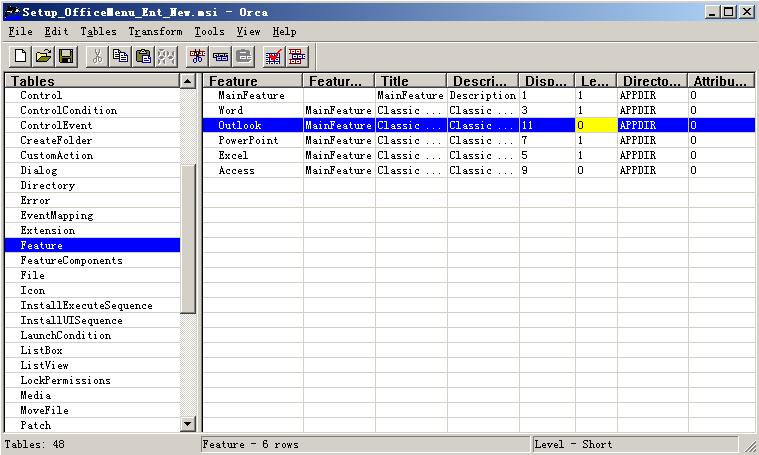
1. Please click the Setup_OfficeMenu_Ent.msi file with right button of mouse, and then select "Edit with Orca".
2. Select the "Feature" item in "Tables" (on the left of form); you can find all classic menu items on the right.
3. Please change the level which you don't want to install from 1 to 0. And then save and distribute the MSI package.