Tips and Frequently Asked Questions (FAQs)
Problems
The pop-up window said my license code is invalid, what should I do?
I can't see the classic menus in Office 2010/2013, what should I do?
When I double click workbook file to open Excel, I cannot see the classic menu
Tips
How can I hide classic menus temporarily?
How can I view only the classic menus and hide the Office 2007
tabs?
Is there a way to use the keyboard shortcuts to access the classic menus?
About Install
How should I install the
software?
How can I uninstall the software?
How can I reinstall the software?
How to deploy the software on all computers in the enterprise or organization (with Windows Server)
How to deploy Classic Menu for Office in quiet mode (Windows XP only)
Registration Help
How can I purchase the software?
How can I register the software?
Is there a way to use the keyboard shortcuts to access the classic menus?
Yes. You just need to add Q to the original shortcuts. For example, press Alt-Q-O-E to open the format cells dialog box in Excel 2007.
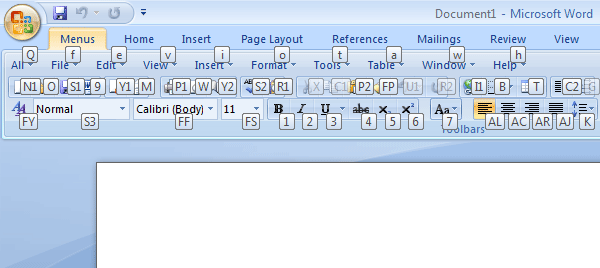
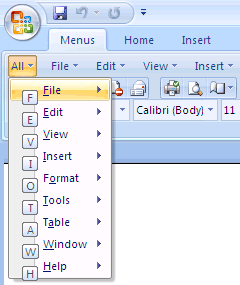
With Office 2007, you don’t even need to remember the shortcut keys. Simply press Alt to see keytips appear in the Ribbon. By following the keytips, you can browse toolbars and menus without remembering the shortcuts. For example, press Alt-Q-Q to display the 'All' menu. Then press O-P to change the paragraph setting.
How can I view only the classic menus and hide the Office 2007 tabs?
Follow these steps:
1. Close all Office 2007 applications
(Word, Excel, PowerPoint, Access and
Outlook).
2. Click "Start" > "All Programs" >
"Classic Menu for Office" > "Classic Menu
Manager".
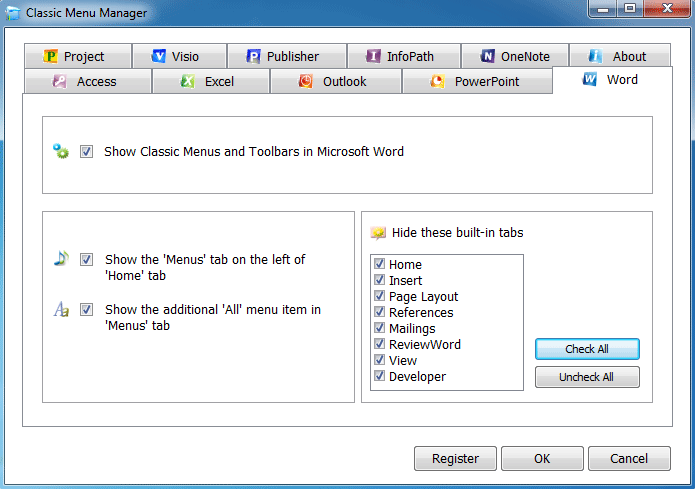
3. In the Classic Menu Manager, click the Word
(or others) tab, and then click "Check All" button under "Hide the following
tabs".
4. Click the OK button.
How can I hide classic menus temporarily?
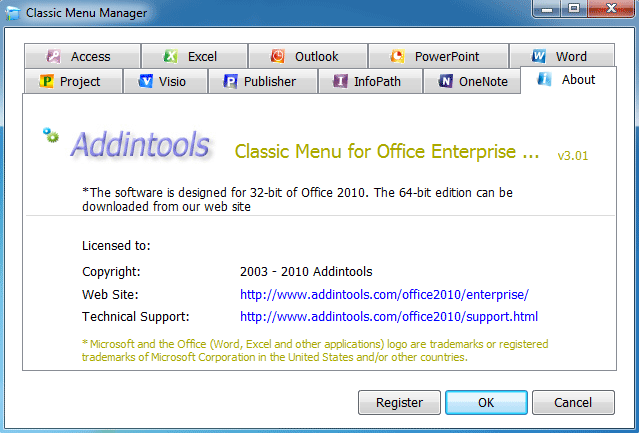
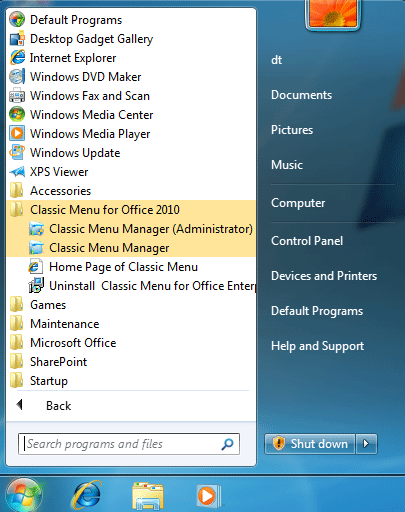
1. Click "Start" > "All Programs" > "Classic Menu for Office" > "Classic Menu Manager" (as show in the image).
2. In the Classic Menu Manager, uncheck the box against "Show Classic Menus and Toolbars in Microsoft Word 2007.” Click OK to temporarily remove the classic menu from Word. Follow similar steps for Excel and other Office programs.
How should I install the software?
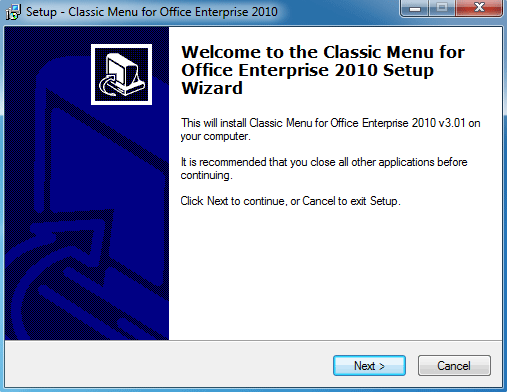
You could download the software from the download page. Please close all Office programs (Word, Excel, PowerPoint, Access, Outlook and others) before you install the software on your computer.
If you are deploying it in your company/enterprise/organization by SCCM or Active Directory, it doesn't require to close Office programs on the computers.
To know how to install the
software on Windows XP, please click Download and install software
in XP or 2003.
If you want to know how to install the
software on Windows Vista (or Windows 7), please click Download and install
software in Vista.
How can I uninstall the software?
1. To uninstall, click "All
Programs" > "Classic
Menu for Office (or
Access/Excel/PowerPoint/Outlook/Word)" > "Uninstall
Classic Menu for Office (or
Access/Excel/PowerPoint/Outlook/Word)".
2. If are unable to find the menu item listed above, uninstall the software by following these steps: "Control
Panel" > "Add/Remove
Programs" > "Classic
Menu for Office (or
Access/Excel/PowerPoint/Outlook/Word)".
3. If you cannot locate the add-in software in "Add/Remove
Programs", please re-download and
reinstall it from the download page, and then try to uninstall it.
How can I reinstall the software?
To reinstall, you don't need to uninstall the original version. You can download and install the latest version from the download page.
We recommend that you install the latest
update
of Microsoft Office 2007/2010/2013 first.
How can I register the software?
Please copy and paste the license name and key into the registration form as follows:
1. Close all Office 2007 applications (Word,
Excel, PowerPoint, Access and Outlook).
2. Click "Start"
> "All Programs"
> "Classic Menu for
******". Right-Click "Classic
Menu Manager",
and select "run as
administrator".
3. In the Classic Menu Manager, click the "Register" button. It is toward bottom of the dialog box.
4. Copy and paste the license name
and license code into the form, and click "OK"
button. If the "Register" button disappears,
you have successfully registered the
product. You can view the registration
information later in the "About" tab.
Please note that "0" in
the license code refers to the number zero and not
letter "O".